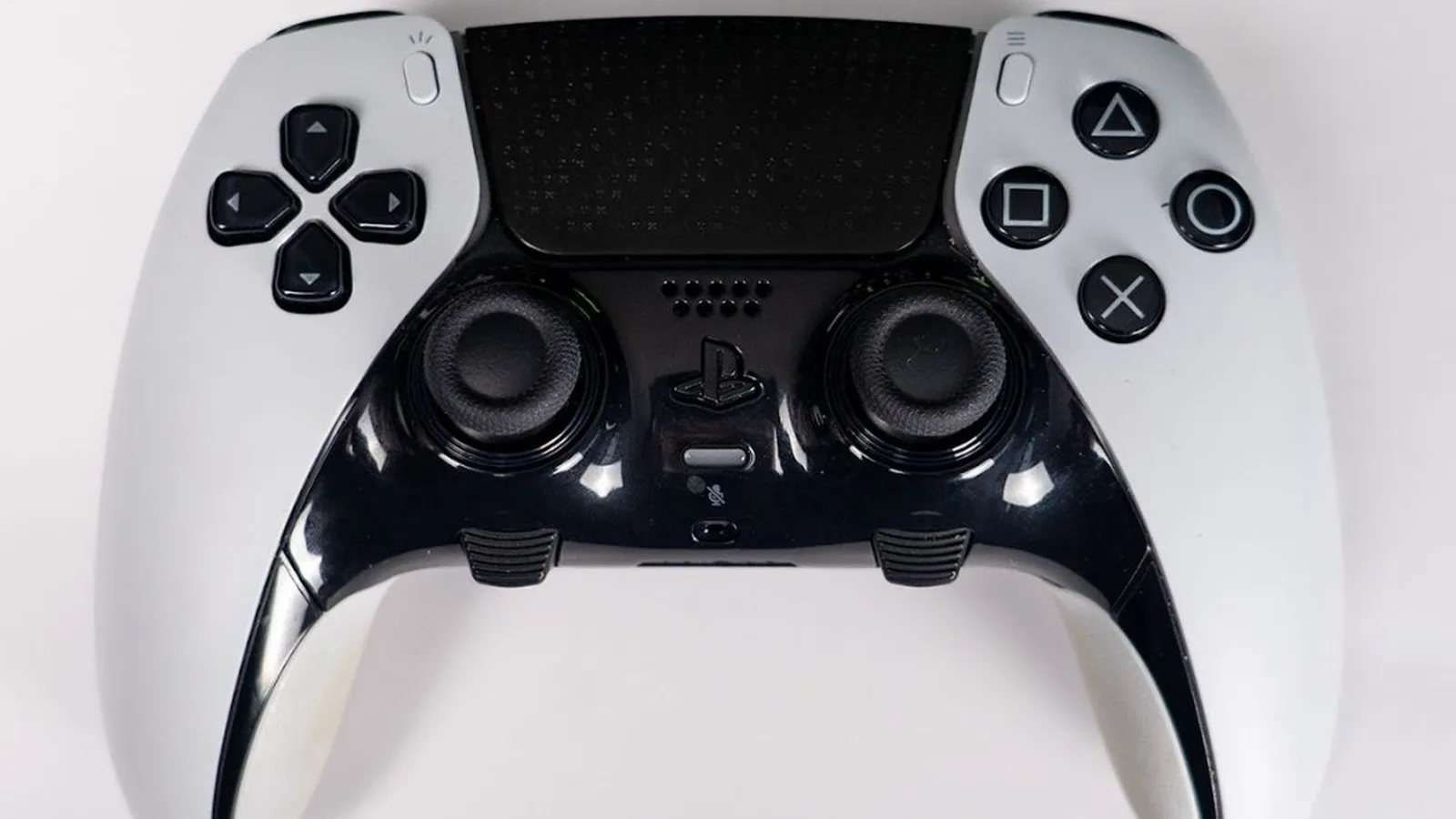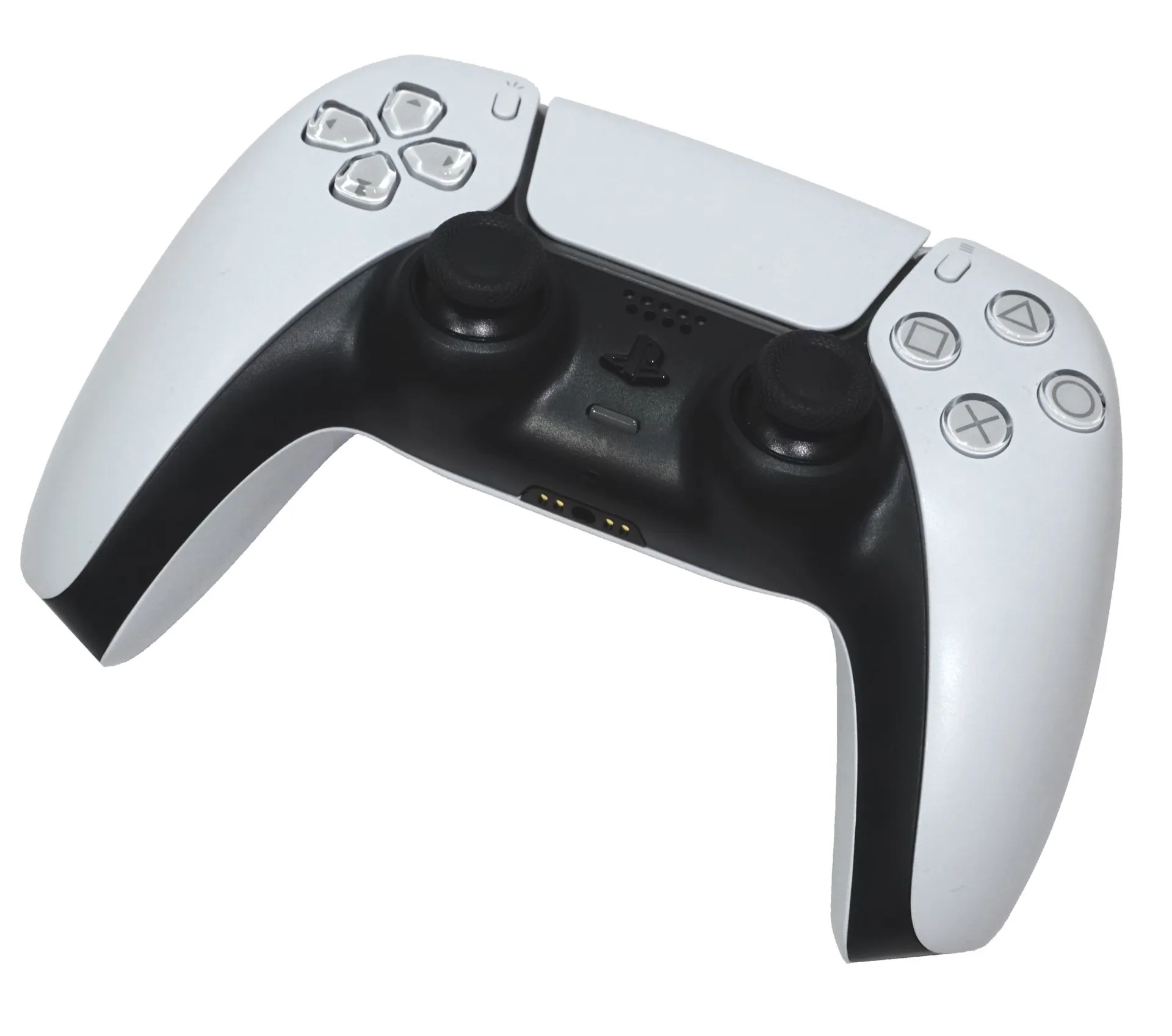
A DualSense remembers up to four devices, so one PS5 controller can switch between your console and your PC with a single button combo, no re-pairing needed. Getting it connected takes under a minute over USB-C or Bluetooth. Getting it to work properly in every game, with haptics, takes a bit more setup, and this guide covers all of it, from the cable to Steam Input to fixes when Windows sees the controller but your games don’t.
Key takeaways
- Plug in a USB-C data cable and Windows detects the DualSense as “Wireless Controller” right away.
- For Bluetooth, hold Create + PS until the light bar blinks, then add it in Windows Bluetooth settings.
- Haptic feedback only works natively over USB. Sony says this applies to PC games.
- Most “connected but not working” problems come from Steam Input, DS4Windows and DSX all trying to control the pad at once.
- Use the DualSense’s four pairing slots so you can switch between your PS5 and PC without re-pairing.
Fact-checked
We checked these key facts against the sources named, on November 14, 2026:
- The DSX v3.2 beta from June 2026 adds Bluetooth haptics through a $3.99 virtual DualSense DLC (source: notebookcheck.net)
- Intel released a Bluetooth driver update that improved DualSense connectivity, including for a second controller on the same PC, as reported by 3DTested (source: 3dtested.com)
- Only download from the project’s own GitHub repository, and avoid any ‘DS4Windows’ bundled with extra installers. DSX, made by Paliverse and sold on Steam, is the main alternative (source: github.com)
- Windows recognizes the DualSense as a game controller with no extra software, and it’s the most reliable connection you can get (source: thecontrollerpeople.com)
- Go wired if you play games with DualSense support, like PlayStation’s own PC ports, because the cable is the only native way to get haptic feedback (source: tomshardware.com)
Quick answer: connect a PS5 controller to PC in 60 seconds
Yes, you can use your PS5 controller on PC. Sony supports it on Windows 10 (64-bit) and Windows 11 over USB-C or Bluetooth. Use the cable if you want haptics. Use Bluetooth if you play from the couch.
Quick steps: connect a DualSense to Windows
- USB: plug a USB-C data cable into the controller and a free USB port on your PC.
- Wait a few seconds. Windows installs it as “Wireless Controller” with no driver download.
- Bluetooth: unplug the cable and make sure the controller is off.
- Hold Create, then hold PS until the light bar blinks.
- Windows 11: Settings > Bluetooth & devices > Add device > Bluetooth > Wireless Controller.
- Open Steam > Settings > Controller and check that the DualSense appears.
Which method should you pick? Go wired if you play games with DualSense support, like PlayStation’s own PC ports, because the cable is the only native way to get haptic feedback. Go Bluetooth for couch play, emulators and games that only use standard rumble.
What you need (and what works on your PC)
You need three things: a DualSense or DualSense Edge, a USB-C cable that carries data, and Bluetooth on your PC if you want to go wireless. Nothing else is required. Windows has a built-in driver for the controller.
Sony Interactive Entertainment’s support page lists these supported systems for DualSense over Bluetooth and USB:
| Platform | Minimum version Sony lists | Connection |
|---|---|---|
| Windows PC | Windows 10 (64-bit) or Windows 11 | USB-C or Bluetooth |
| Mac | macOS Big Sur 11.3 or later | USB-C or Bluetooth |
| iPhone / iPad / Apple TV | iOS, iPadOS, tvOS 14.5 or later | Bluetooth |
| Android | Android 12 or later | Bluetooth |
Microsoft ended support for Windows 10 on October 14, 2025. Sony still lists it, and the controller still works there, but Windows 11 is where you’ll get current Bluetooth stack fixes.
It’s the same controller on every console model. The DualSense that ships with a PS5 Slim or PS5 Pro connects to a PC the same way as one from a launch PS5.
Which USB-C cable works
You need any USB-C to USB-A or USB-C to USB-C cable that carries data. The catch is that many cheap cables only carry power. A charge-only cable lights up the controller and charges it, but Windows never sees it.
Your options, from most to least likely to work:
- The cable that came with your PS5 console. Sony’s console boxes include a USB cable that carries data.
- The braided cable from a DualSense Edge box. It’s built for wired play.
- A phone cable you trust for file transfers. If it moves photos from your phone to your PC, it carries data.
- A random cable from a drawer or gas station. This is the one most likely to be charge-only.
A standalone DualSense box doesn’t come with a cable. If you bought the controller on its own, you’ll need your own.
Player tip
If the controller charges but Windows doesn’t detect it, swap the cable first. Charge-only USB-C cables have no data lines, and this is the most common reason a wired DualSense goes unnoticed.
Does my PC or laptop have Bluetooth?
Almost every laptop sold in the last decade has Bluetooth built in. Many desktops don’t, unless the motherboard or Wi-Fi card includes it.
Here’s how to check in under 30 seconds:
- Press Windows + X and open Device Manager.
- Look for a Bluetooth category.
- If it’s there and the adapter shows no warning icon, you’re set.
- If there’s no Bluetooth entry, you’ll need a USB Bluetooth adapter.
On Windows 11, you can also open Settings > Bluetooth & devices. If there’s no Bluetooth toggle at the top, the PC has no working adapter.
A cheap adapter is often worse than none. The community question “Cheap Bluetooth 5.3 adapter has high latency and keeps dropping the DualSense” comes up all the time. A bigger version number doesn’t fix a weak radio or a poor driver. If your adapter struggles, a USB cable will always work better.
How to connect a PS5 controller to PC with a USB cable
The wired method is plug-and-play. Windows recognizes the DualSense as a game controller with no extra software, and it’s the most reliable connection you can get.
Steps
- Turn the controller off if it’s paired to a nearby PS5. Otherwise the console may grab it first.
- Plug the USB-C end into the port on top of the DualSense, between the shoulder buttons.
- Plug the other end into a USB port on your PC. Use a port on the back of a desktop (directly on the motherboard) rather than a front-panel hub if you can.
- Watch the light bar. It lights up and the player indicator turns on.
- Check Windows. Go to Settings > Bluetooth & devices > Devices (Windows 11). The controller appears as Wireless Controller, even though it’s wired. That’s normal.
- Confirm in Steam. Open Steam > Settings > Controller. The DualSense should be listed under detected controllers.
What you should see: a lit controller, a “Wireless Controller” entry in Windows, and the pad showing up in Steam’s controller settings. If all three appear, the hardware side is done. Anything that goes wrong after this point is a software issue, covered in the troubleshooting section.
If you want to test inputs outside a game, type joy.cpl into the Windows Run box (Windows + R). The Game Controllers panel opens. Select Wireless Controller, then Properties, and press buttons to see them register.
Why wired is best for haptics and audio
USB is the only native way to get the DualSense’s best features on PC. Sony’s PlayStation PC accessories page says a USB connection is required for haptic feedback in PC games, and may be required for adaptive triggers in select games.
The same Sony support page says:
- Haptic feedback on PC needs a USB connection.
- The built-in mic and speaker work on Windows when the game supports them.
- The 3.5mm headset jack needs a wired connection on PC and Mac.
There’s a trade-off. A cable limits how far you can sit from the PC, and a 1m phone cable won’t reach a couch. A 3m cable is a good choice for desk-to-chair setups. The controller charges while you play, so battery life is never an issue.
How to connect a PS5 controller to PC with Bluetooth (wirelessly)
To connect a DualSense to PC wirelessly, put it in pairing mode with Create + PS, then add it as a Bluetooth device in Windows Settings. It shows up as “Wireless Controller.”
Put the DualSense in pairing mode
Sony’s instructions are specific: the player indicator must be off and no USB cable can be attached.
- Unplug any USB cable from the controller.
- Turn the controller off if it’s on. Hold the PS button until the light bar and player indicator go dark. If it’s connected to a PS5, you can also turn it off from the console’s Control Center.
- Press and hold the Create button, the small button to the left of the touchpad.
- While holding Create, press and hold the PS button.
- Keep holding until the light bar blinks rapidly in blue. That’s pairing mode.
If the light bar glows steadily or pulses slowly instead of blinking fast, the controller is trying to reconnect to a device it already knows. Turn it off and try again.
Player tip
Unplug the USB cable and fully turn the controller off before entering pairing mode. With a cable attached or the player indicator already lit, the light bar won’t start blinking.
Pair on Windows 11
- Open Settings (Windows + I).
- Select Bluetooth & devices.
- Make sure Bluetooth is toggled On.
- Select Add device.
- Choose Bluetooth in the pop-up.
- Put the DualSense in pairing mode (Create + PS until it blinks).
- Select Wireless Controller when it appears in the list.
- Wait for “Your device is ready to go,” then select Done.
The light bar stops blinking and stays lit once it’s paired. Under Bluetooth & devices, the Wireless Controller entry shows “Connected” and often a battery percentage.
Pair on Windows 10
The Windows 10 menu path is slightly different:
- Open Settings > Devices > Bluetooth & other devices.
- Turn Bluetooth on.
- Select Add Bluetooth or other device.
- Choose Bluetooth.
- Put the controller in pairing mode.
- Select Wireless Controller and wait for the confirmation.
Unpair and re-pair
If the controller stops connecting, a fresh pairing fixes most problems:
- In Windows, go to Settings > Bluetooth & devices > Devices.
- Find Wireless Controller, open the three-dot menu and select Remove device.
- Pair it again from scratch using the steps above.
If it still won’t enter pairing mode, reset it. With the controller off, press the small reset button on the back (inside the hole near the Sony logo) with a straightened paperclip for about five seconds. Then pair again.
Connecting to a laptop
The steps are the same on a laptop. The difference is radio quality. Laptop Bluetooth antennas are small and often share a chip with Wi-Fi, so range and stability vary a lot between models.
Readers often ask why “Controls feel floaty over Bluetooth on my laptop.” The usual causes are distance, a crowded 2.4GHz band (Wi-Fi on the same frequency) or other Bluetooth devices sharing bandwidth. Sit within a couple of meters with a clear line of sight. If that’s not enough, use the cable for anything timing-sensitive.
Use one DualSense for PS5 and PC without re-pairing
A DualSense can store up to four pairings and switch between them with a button combo. Put your PS5 in one slot and your PC in another, and moving the controller from couch to desk takes about three seconds.
Did you know?
According to Sony’s DualSense support page, one controller can remember up to four devices. Hold PS + Circle for about 3 seconds and it switches to whatever device is stored in that slot, with no re-pairing.
Assign slots
Sony’s slot system uses the four action buttons. To assign a device to a specific slot, hold PS + an action button for more than 5 seconds to enter pairing mode for that slot, then pair it as normal.
| Slot | Assign (hold more than 5 s) | Switch to it (hold about 3 s) | Suggested device |
|---|---|---|---|
| 1 | PS + Triangle | PS + Triangle | PS5 console |
| 2 | PS + Circle | PS + Circle | Gaming PC or laptop |
| 3 | PS + Cross | PS + Cross | Phone (Remote Play, mobile games) |
| 4 | PS + Square | PS + Square | Mac, tablet or second PC |
Some details from Sony’s documentation are worth knowing:
- Create + PS (held for at least 3 seconds) still works. It auto-assigns the next free slot.
- When all four slots are full, the least recently used slot is replaced by the new pairing.
- Switching takes about 3 seconds of holding PS + the action button for that slot.
Here’s what a two-device setup looks like. Pair the PC with PS + Circle held past 5 seconds, then add “Wireless Controller” in Windows. That evening, hold PS + Triangle for 3 seconds and the controller hops back to the PS5. The next morning, PS + Circle brings it back to the PC. Neither device loses its pairing.
Player tip
Put the PS5 on slot 1 (PS + Triangle) and the PC on slot 2 (PS + Circle). Once that’s done, you never need to re-pair, and you’ll always know which combo goes where.
Switch between PS5 and PC
The switch is simple. Hold PS plus the slot’s action button for about three seconds while the controller is on. The light bar briefly changes as the controller drops one connection and finds the other.
Two things trip people up:
- Turn the target device on first. The controller can’t connect to a sleeping PC with Bluetooth off, or to a PS5 that’s fully powered down.
- Slots require recent firmware. If the combos don’t do anything, update the controller first (see the firmware section below).
Reconnect to your PS5
If you used Create + PS without thinking about slots, or the PS5’s pairing got replaced, the fix is quick. Sony’s instruction: plug the controller into the PS5 with a USB cable and press the PS button. The console re-pairs it instantly, and you can unplug and play wirelessly.
This is also the fastest fix if your PS5 controller won’t wake the console after a few PC sessions.
Set up the controller in Steam
Steam has supported the DualSense through the Steam Input API since December 2020, according to PC Gamer’s coverage, including the touchpad, light bar, rumble and gyro over Bluetooth or USB. For most players, Steam is the easiest way to use a PS5 controller on PC.
Turn on PlayStation support
- Open Steam and select Steam > Settings (top-left).
- Select Controller in the left menu.
- Find the PlayStation controller support option and set it to Enabled (or “Enabled in games without support” if you want games with native DualSense support to read the controller directly).
- Your DualSense should be listed under detected controllers. Select it to calibrate, test buttons or change the light bar.
That option controls a key decision. When Steam Input is active for a game, Steam translates your DualSense into whatever the game expects. That’s often an Xbox-style controller, which is why you’ll see Xbox button prompts. When Steam Input steps aside, a game with native DualSense support talks to the controller directly. You get PlayStation prompts and, over USB, haptics and adaptive triggers.
Per-game Steam Input on/off
You can override the global setting for any single game:
- Right-click the game in your Library and choose Properties.
- Open the Controller tab.
- Use the override drop-down: Use default settings, Disable Steam Input or Enable Steam Input.
Use it this way:
| Game type | Steam Input setting | Why |
|---|---|---|
| Native DualSense support (e.g. Sony’s PC ports) | Disable Steam Input | The game reads the controller directly, so you get haptics, triggers and PS prompts over USB |
| Xbox-only controller support | Enable Steam Input | Steam translates the DualSense into an Xbox-style pad the game understands |
| No controller support | Enable Steam Input | You can map buttons to keyboard and mouse with a community layout |
| Game shows double inputs | Pick one: Steam Input on, or your other tool on | Two layers are fighting over the same pad |
Before you buy, check the Steam store page. Look for Full Controller Support or Partial Controller Support in the sidebar. Sony’s own support page points to this as the way to check a game. On many store pages, the sidebar also lists which controller families the game supports, including PlayStation controllers.
Add non-Steam games to Steam
Steam Input also works for games you didn’t buy on Steam:
- In Steam, select Games > Add a Non-Steam Game to My Library.
- Tick the game’s .exe (or browse to it) and select Add Selected Programs.
- Launch the game from Steam, not from its own shortcut.
Steam then applies Steam Input to that game. This trick works for many Epic Games Store titles, standalone launchers and emulators. Some launchers that hand off to a second process won’t play nicely with it, and that’s when the tools in the next section help.
Non-Steam games: Epic, Xbox app and emulators
Outside Steam, a game either reads the DualSense natively, reads only Xbox-style (XInput) controllers, or needs a helper app. Check the game first, then add tools only if you need them.
Here’s how the main launchers usually behave:
- Epic Games Store: support depends on each game. Many games read the DualSense directly. If one doesn’t, adding it to Steam as a non-Steam game is usually the quickest fix.
- Xbox app / PC Game Pass: many titles only look for XInput controllers. A DualSense works in those once something translates it into an Xbox pad (Steam Input via the non-Steam trick, DS4Windows or DSX).
- Emulators: most have their own input settings that detect the DualSense through SDL. Configure the controller in the emulator itself and disable other mappers for that session.
- PS Remote Play: Sony’s own app recognizes the DualSense. Over USB you get the most features, but for streamed PS4 games, haptics drop to basic rumble and adaptive triggers turn off.
If a game ignores the DualSense even after all that, the official route is the game’s developer or publisher support. Their support pages list which controllers they actually test, and patches have added DualSense support to games after launch.
DS4Windows
DS4Windows is a free, open-source tool that makes your DualSense (or DualShock 4) appear to Windows as an Xbox 360 controller. It does this by installing a virtual gamepad driver (ViGEmBus). That means any game that supports Xbox controllers suddenly “sees” your PS5 controller.
The trade-off is significant: games see an Xbox controller, not a DualSense. Native haptics, adaptive triggers and PlayStation button prompts disappear in games that would otherwise support them. Many guides recommend DS4Windows as the default for non-Steam games without mentioning this.
The project’s history matters too. The original Jays2Kings version was abandoned years ago. The Ryochan7 fork took over, then the schmaldeo fork. GitHub shows the schmaldeo repository was archived by its owner on March 5, 2026, so it’s now read-only. Its last release was version 3.9.9, and the maintainer has called the project discontinued. Guides report the archived 3.9.9 build still runs. Community forks claim to continue the work, but none has an established track record yet.
Heads up
Lookalike DS4Windows download sites exist mainly to rank in search. Only download from the project’s own GitHub repository, and avoid any “DS4Windows” bundled with extra installers.
DSX (formerly DualSenseX)
DSX, made by Paliverse and sold on Steam, is the main alternative. It can emulate an Xbox controller like DS4Windows does. Its bigger strength is DualSense-specific features: adaptive trigger modes, light bar control and, since June 2026, a virtual DualSense mode.
The v3.2 beta, covered by Push Square, Notebookcheck and others in June 2026, adds DualSense haptic feedback and native controller audio over Bluetooth on PC. It needs the DSX+ DLC ($3.99), which creates a virtual DualSense that games treat as a wired controller. The feature lives on the DSX beta branch on Steam. The same update lets DSX launch without Steam running, using a 28-day ownership cache.
Which tool should you use?
Use as few layers as possible. Start with Steam Input. Add DS4Windows or DSX only for games that need it, and never run more than one at a time.
| Tool | Best for | How it works | Keeps native DualSense features? | Cost |
|---|---|---|---|---|
| Steam Input (Valve) | Steam games and non-Steam games added to Steam | Translates the DualSense per game; can step aside for native-support games | Yes, when disabled for native-support games | Free |
| DS4Windows | Older non-Steam games that only accept Xbox pads | Emulates an Xbox 360 controller through ViGEmBus | No: haptics, triggers and PS prompts are lost | Free, open source (archived since March 2026) |
| DSX (Paliverse) | Trigger mods, non-Steam games, Bluetooth haptics | Xbox emulation or a virtual DualSense | Yes, with virtual DualSense (DSX+ DLC) | Paid on Steam; DSX+ DLC $3.99 |
| PlayStation Accessories app (Sony) | Firmware updates; DualSense Edge profiles | Official companion app | Not a mapper; doesn’t change game input | Free |
| No tool (native) | Games with built-in DualSense support | The game reads the controller directly | Yes, fully over USB | Free |
For most readers: Steam Input plus a USB cable covers 90% of what you’ll play. For PlayStation PC ports on the couch: DSX’s virtual DualSense is the only way to get haptics over Bluetooth right now. For one stubborn older game: DS4Windows still does the job, as long as you close it afterward.
Haptics, adaptive triggers, mic and headset jack: what works where
Basic controls work over any connection. Haptic feedback needs USB natively. Adaptive triggers work in select games and may need USB. Bluetooth haptics only work through DSX’s paid virtual DualSense.
Feature-by-connection table
This matrix is built from Sony’s support and PC accessories pages, PCGamingWiki’s DualSense entry and coverage of the DSX v3.2 beta.
| Feature | USB-C | Bluetooth (native) | Bluetooth + DSX v3.2 beta | PS Remote Play (PS4 games) |
|---|---|---|---|---|
| Buttons, sticks, touchpad | Yes | Yes | Yes | Yes |
| Classic rumble, light bar, gyro (via Steam Input) | Yes | Yes | Yes | Rumble only |
| Haptic feedback | Yes, in supported games | No | Yes, with DSX+ DLC | Basic rumble instead |
| Adaptive triggers | Yes, in select games | Not reliable; Sony says USB may be required | Yes, via virtual DualSense | Not supported |
| Built-in speaker and mic | Yes, when the game supports them | No native controller audio | Controller audio added (beta) | Not specified by Sony |
| 3.5mm headset jack | Yes | No (Sony: wired only) | Not part of the beta’s feature list | Not specified by Sony |
Keep one rule in mind: the connection only makes these features possible. The game still has to support them. Sony’s PC accessories FAQ says only select PC games support haptics and adaptive triggers. Sony’s PC ports are the most dependable examples.
Did you know?
Bluetooth haptics fail on Windows because the DualSense receives its haptics as an audio stream, and Notebookcheck reports that Windows’ Bluetooth stack doesn’t allow that high-bandwidth data. PCGamingWiki’s DualSense entry gives the same reason: haptics depend on the controller’s audio device.
Why Bluetooth haptics don’t work natively
The DualSense’s haptic motors are driven by waveforms that are sent like audio. Over USB, Windows sees the controller as both a game controller and an audio device, so games can stream that “haptic audio” directly to it.
Over Bluetooth, the controller’s audio device doesn’t show up on Windows. The game has nowhere to send the haptics stream, so it falls back to basic rumble or nothing. Sony’s own Remote Play app has the same limitation. Sony’s reported patent hinting at PS6 controller haptics beyond DualSense suggests the company is still working on haptics technology, but nothing in it changes how today’s DualSense behaves on Windows.
Getting haptics over Bluetooth with DSX
Here’s what’s involved in the June 2026 DSX workaround:
- Buy DSX on Steam and the DSX+ (Virtual DualSense, BT Audio/Haptics) DLC for $3.99.
- Opt into the DSX beta branch in Steam (Library > right-click DSX > Properties > Betas).
- Pair the DualSense over Bluetooth as normal.
- Enable the virtual DualSense in DSX, so games see a wired controller and send it haptics and audio data.
- Turn off Steam Input for that game, so Steam doesn’t sit on top of DSX.
The honest counter-argument: it’s beta software, it costs money, and it adds another layer that can conflict with games. If your chair is within reach of a 3m USB cable, the cable is free, official and works the same way every time.
Update your DualSense firmware on PC
You can update your controller’s firmware on Windows with Sony’s free PlayStation Accessories app. Updating fixes connection bugs and enables features like the four-slot pairing system.
The app used to be called “Firmware updater for DualSense wireless controller” and got its new name with version 2.0.0.13 in August 2024. Sony’s requirements:
| Requirement | Minimum |
|---|---|
| Operating system | Windows 10 (64-bit) or Windows 11 |
| Free storage | 250MB |
| Display resolution | 1280 x 800 |
| Connection | USB cable or Bluetooth |
To update:
- Install and open PlayStation Accessories.
- Connect the controller by USB or Bluetooth.
- Select Firmware for your controller to see its current version.
- If Update appears, select it and wait.
Don’t turn off your PC or disconnect the controller mid-update. If you have several controllers, Sony says to update them one at a time. A USB cable is the safer choice for updates because it can’t drop mid-transfer the way a weak Bluetooth link can.
Heads up
Interrupting a firmware update can leave the controller unresponsive. Use a cable, plug laptops into power and don’t start a game while the update runs.
DualSense Edge on PC
On a standard DualSense, PlayStation Accessories only updates firmware. On a DualSense Edge, it also lets you create and switch custom profiles on Windows: button remapping, stick sensitivity curves, dead zones and trigger settings, saved to the controller itself.
That makes the Edge a better choice for PC players who want hardware-level remapping without DS4Windows or DSX. Profiles live on the controller, so you can set them up once in the app and use them in any game. The Edge connects to PC exactly like a standard DualSense: USB-C or Bluetooth with Create + PS.
PS5 controller not connecting or not working on PC? Fixes by symptom
Most problems come down to one of three causes: a charge-only cable, a weak Bluetooth link, or two input layers (Steam Input, DS4Windows, DSX) fighting over the controller. Find your symptom below.
| Symptom | Likely cause | Fix |
|---|---|---|
| Lights up when plugged in, Windows doesn’t detect it | Charge-only cable or a faulty front-panel port | Use a known data cable in a rear motherboard port |
| Light bar won’t blink for pairing | Cable attached or controller already on | Unplug, turn off, hold Create + PS again |
| “Wireless Controller” not in the Bluetooth list | Stale pairing or adapter issue | Remove the old entry, reset the controller, re-pair |
| Connected but no input in games | Steam Input conflict or game expects XInput | Toggle per-game Steam Input; launch via Steam |
| Shows as Xbox controller | Steam Input or DS4Windows translating it | Disable Steam Input for that game, close DS4Windows |
| Double inputs | Two mappers running | Run only one: Steam Input, DS4Windows or DSX |
| Drops or lags over Bluetooth | Interference, distance, weak adapter, headset | Move closer, update the Bluetooth driver, use USB |
| Works in Steam, not Epic | Steam Input only covers Steam-launched games | Add the game to Steam, or use DSX |
Not detected over USB
Start with the cable. If the controller charges but nothing appears in Windows, it’s almost always a charge-only cable. Then try these in order:
- Move to a rear USB port on a desktop. Front panels and unpowered hubs are common failure points.
- Open Device Manager and look under Human Interface Devices and Sound, video and game controllers. A yellow warning icon means a driver problem. Right-click the device and Uninstall, then unplug and reconnect the controller.
- Run Windows Update for pending driver updates.
- Test the controller and cable on another PC or your PS5 to isolate the faulty part.
Won’t show up in Bluetooth or won’t enter pairing mode
If the light bar never blinks, the controller isn’t in pairing mode. Unplug the cable and turn it off fully. Then hold Create first and PS second, and keep both held until the blinking starts.
If it blinks but Windows never lists “Wireless Controller”:
- Turn your PS5 off. It can grab the controller first.
- Remove any old Wireless Controller entry in Windows Bluetooth settings.
- Press the reset button on the back for about five seconds, then pair again.
- Toggle Bluetooth off and on, or restart the PC.
Connected but not working in games
This is the most common complaint, phrased in many ways: “PS5 controller connects but has no inputs,” or “When wired, my controller connects to my PC just fine, until I start ANY game.” Windows sees the controller, but the game doesn’t respond.
Work through these causes:
- The game doesn’t read DualSense natively. If it only supports Xbox pads, launch it through Steam with Steam Input enabled, or add it as a non-Steam game.
- Steam Input is grabbing the controller. For games with native support, Steam Input can block direct access. Set Disable Steam Input in the game’s Properties > Controller tab and test again.
- You plugged in USB while already paired over Bluetooth. Readers report that “the light bar changes and buttons become unresponsive when I plug in USB while on Bluetooth.” The controller switches connections mid-game, and the game loses its device. Pick one connection before launching the game. If it happens, close the game, disconnect, reconnect one way and relaunch.
- A background mapper. DS4Windows or DSX running while Steam Input is active can hide the real controller from the game.
- Firmware. Update through PlayStation Accessories, especially if the controller “is not working anymore as it used to on Windows 10 & 11” after a period of working fine.
Player tip
Don’t plug in a USB cable while a game is running over Bluetooth. Decide on a connection before you launch, and restart the game if you switch.
Double inputs or wrong button prompts
Double inputs mean two programs are both reporting the same controller. A typical case: DS4Windows creates a virtual Xbox pad while Steam Input also reads the real DualSense, so every button press counts twice. Close DS4Windows, or turn off Steam Input for that game. Never run both.
“It gets recognized as an Xbox controller after a Steam update” usually means Steam Input settings changed or the game is now running through Steam Input. Check Steam > Settings > Controller for the PlayStation support option. Then check the game’s per-game override. Setting Disable Steam Input for a game with native DualSense support brings back PlayStation prompts.
Some games just show Xbox prompts no matter what, because the developer never added PlayStation icons. In that case, only the game’s developer can fix it.
Keeps disconnecting or input lag over Bluetooth
“Why does my controller constantly stop connecting?” On PC, the causes are physical more often than not:
- A Bluetooth headset competing for bandwidth. “Controller drops when my Bluetooth headset is connected too” is a common report. A headset streaming audio uses a lot of the adapter’s capacity. Use a wired or 2.4GHz dongle headset, or plug the controller in.
- A weak onboard adapter or antenna. Desktop motherboards with Bluetooth often have a small antenna that needs screwing onto the back panel. If it’s missing or hidden behind a metal case, range drops sharply. Attach it and place it with a clear line of sight to your seat.
- Outdated drivers. Intel released a Bluetooth driver update that improved DualSense connectivity, including for a second controller on the same PC, as reported by 3DTested. Update through Windows Update or Intel’s Driver & Support Assistant, or from your laptop maker’s support page for other chipsets.
- 2.4GHz Wi-Fi interference. Move the router away from the PC, or use your router’s 5GHz band.
- Power saving. In Device Manager, open your Bluetooth adapter’s properties. On the Power Management tab, untick “Allow the computer to turn off this device to save power.”
If it still drops, the USB cable is the reliable fallback, and you’ll get haptics with it.
Works in Steam but not Epic or other launchers
Steam Input only applies to games launched through Steam. A game started from the Epic Games Store or the Xbox app sees the raw DualSense, and if it doesn’t support one, nothing happens.
“PS5 controller not working in Rocket League on PC” is a classic example. Rocket League is free on the Epic Games Store, so Steam isn’t involved by default. Try these fixes in order:
- Close Steam completely, so it isn’t holding the controller in the background, and test again.
- Check the controller settings inside Rocket League.
- Add the game to Steam as a non-Steam game and launch it from there.
- If none of that works, contact the game’s support. They can confirm which controllers the current build supports.
Pick your connection, then set it up once
The best setup for most PC players is simple. Use a USB-C data cable at the desk, give the PC slot 2 (PS + Circle) for couch sessions, and let Steam Input handle everything except games with native DualSense support. Turn Steam Input off for those, plug in, and you’ll get haptics and adaptive triggers just like on PS5. Update the firmware once through PlayStation Accessories, then switch between console and PC with three seconds on a button combo.
FAQ
How do I put my PS5 controller in pairing mode?
Unplug any USB cable and turn the controller off. Hold the Create button, then hold the PS button until the light bar blinks quickly. To pick a specific memory slot instead, hold PS + Triangle, Circle, Cross or Square for more than 5 seconds.
Can I use a PS5 controller on PC?
Yes. Sony officially supports the DualSense on Windows 10 (64-bit) and Windows 11 over USB-C or Bluetooth. Windows has a built-in driver, and Steam has supported it through Steam Input since December 2020.
How do I hook up a PS5 controller to a Windows PC?
Either plug it in with a USB-C data cable, or pair it over Bluetooth. On Windows 11, go to Settings > Bluetooth & devices > Add device > Bluetooth and select “Wireless Controller” while the light bar blinks.
Why won’t my PS5 controller connect to my PC through USB?
The most common reason is a charge-only USB-C cable that has no data lines. Swap to a cable you know transfers data, use a rear motherboard USB port, and check Device Manager for a driver warning.
How do I connect a PS5 controller to a laptop?
The same way as a desktop. Pair it through the laptop’s built-in Bluetooth, or plug it into a USB-A or USB-C port with a data cable. Laptop Bluetooth range is often shorter, so stay close or use the cable if the controls feel floaty.
Do I need DS4Windows for a PS5 controller?
No. Windows and Steam support the DualSense without it. DS4Windows only helps with non-Steam games that accept Xbox controllers alone. It turns off native features like haptics, and its schmaldeo repository has been archived since March 2026.
Does haptic feedback work over Bluetooth on PC?
Not natively. Sony says haptics on PC need USB, because Windows’ Bluetooth stack can’t carry the haptics audio stream. The DSX v3.2 beta from June 2026 adds Bluetooth haptics through a $3.99 virtual DualSense DLC.
Will connecting my PS5 controller to PC unpair it from my PS5?
Not if you use separate slots. The DualSense stores up to four pairings, so hold PS + Triangle for the PS5 and PS + Circle for the PC to switch. If the PS5 pairing gets replaced, plug the controller into the console with a USB cable and press PS.
How do I connect a PS5 controller to Windows 10?
Go to Settings > Devices > Bluetooth & other devices > Add Bluetooth or other device > Bluetooth. Put the controller in pairing mode with Create + PS and select “Wireless Controller.” A USB-C data cable also works with no setup.
Why does my PS5 controller show as an Xbox controller in games?
Steam Input, DS4Windows or DSX is translating it into an Xbox-style controller. For games with native DualSense support, disable Steam Input in the game’s Properties > Controller tab and close other mappers. Some games simply never added PlayStation button prompts.
About this piece
- Fact-checked by Harriet Vance against the sources listed below before publication.
- Published
Sources (8)
- How to use DualSense wireless controllers with PC, Mac and mobile devices (PlayStation Support) (playstation.com)
- How to use DualSense wireless controllers with PC, Mac and mobile devices (PlayStation Support, IE) (playstation.com)
- PlayStation PC accessories (playstation.com)
- PlayStation PC accessories (IE) (playstation.com)
- PS5 controller's best features are finally working over Bluetooth on PC (Push Square) (pushsquare.com)
- DualSense PS5 controller gains haptics over Bluetooth on PC (Notebookcheck) (notebookcheck.net)
- DSX adds native virtual DualSense support, wireless haptics in v3.2 Beta 01 (MP1st) (mp1st.com)
- DSX v3.2 beta adds native DualSense haptic feedback over Bluetooth on PC (TweakTown) (tweaktown.com)