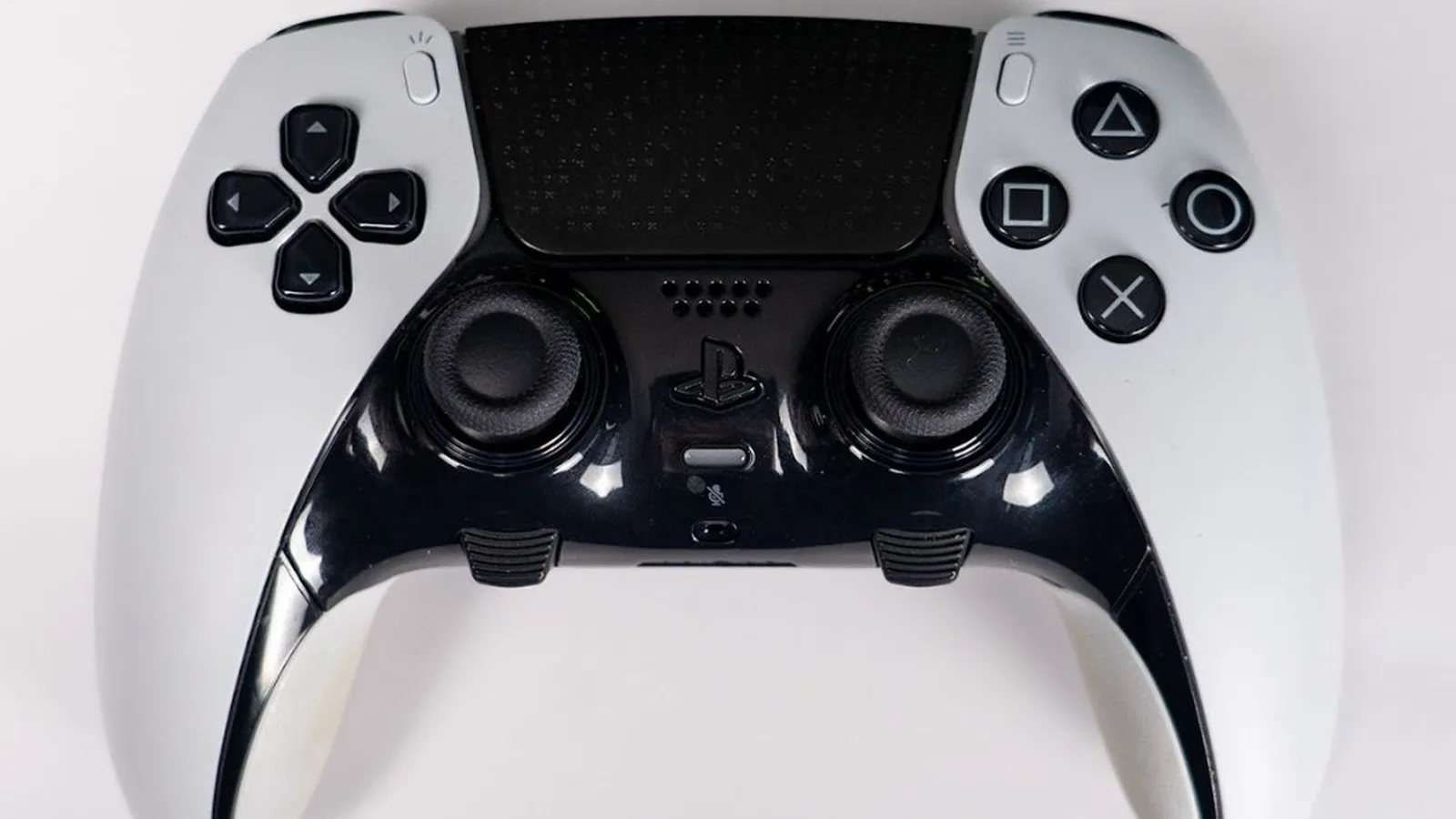
Every DualSense has a reset button hidden in a pinhole next to the Sony logo on the back. Sony’s troubleshooting steps recommend holding the button for at least five seconds with a paperclip when you have pairing, connection or button problems. Below are Sony’s exact steps for the DualSense and the DualSense Edge, how to re-pair on a PS5, PC, Mac or phone, and what to try when a reset doesn’t help.
Key takeaways
- Turn off the PS5, unplug the cable, hold the pinhole button for at least 5 seconds, then reconnect by USB and press the PS button.
- Sony says a reset doesn’t change pairing or profile settings. Several third-party guides say it does, so re-pair by USB either way.
- Try a soft reset first. It takes 30 seconds and needs no tools.
- A reset only fixes stick drift caused by software. A worn stick needs a part or a repair.
- You can update DualSense firmware without a PS5 using Sony’s Windows app, over USB only.
Fact-checked
We checked these key facts against the sources named, on November 14, 2026:
- There’s no Mac version of the firmware updater, so Mac owners need a PS5 or a Windows PC to update (source: techradar.com)
- It followed 26.06-14.10.00 from October 2, 2026, which Insider Gaming logged as a security and stability release (source: insider-gaming.com)
- On a DualSense Edge, the $19.99 stick module is designed to be swapped by you, so replacing it is the sanctioned DIY fix (source: playstation.com)
- Sony’s Firmware Updater for DualSense wireless controller has been available since April 2022 and is still the official route on PC (source: thesixthaxis.com)
- PlayStation LifeStyle and Push Square reported it rolling out around November 1 to 2, 2026, with patch notes listing only security fixes (source: mp1st.com)
How to reset a PS5 controller (quick answer)
To hard reset a PS5 controller, turn off the console, unplug the controller, press the button inside the small hole on the back for at least 5 seconds, then reconnect it with a USB cable and press the PS button. Sony’s US support page lists the steps in this order, and the whole thing takes under two minutes.
Quick steps: hard reset a DualSense
- Turn off your PS5 completely (not Rest Mode).
- Unplug the USB cable from the controller.
- Press and hold the button in the hole next to the Sony logo for at least 5 seconds.
- Reconnect the controller to the PS5 with a USB-C cable.
- Turn on the PS5 and press the PS button to pair.
What you need:
- A thin, rigid pin: an unbent paperclip or a SIM-eject tool.
- A data-capable USB-C cable, such as the one that came with the console or controller.
- Your PS5, or a Windows 10 or Windows 11 PC if you only want to update firmware.
These steps are the same on the launch PlayStation 5, the PS5 Slim and the PS5 Pro, because the reset lives in the controller rather than the console.
Player tip
Use an unbent paperclip or a SIM-eject tool. A toothpick can snap off inside the hole, and then the button is blocked for good.
Soft reset vs hard reset: which one you need
Start with a soft reset: turn the controller off, restart the console and reconnect. Use the pinhole hard reset only if the problem comes back. If the controller simply won’t connect to one device, re-pairing is often all you need.
| Method | How | What it clears | Best for | Time |
|---|---|---|---|---|
| Soft reset | Control Center > Accessories > controller > Turn Off, or hold PS about 10 s, then restart the PS5 | The current session and temporary glitches | Lag, a one-off disconnect, unresponsive buttons mid-game | About 1 minute |
| Hard reset | Pinhole button held at least 5 s with the console off | The controller’s running state. Sony says pairing and profiles stay | Repeated disconnects, won’t pair, buttons dead after a soft reset | About 2 minutes |
| Re-pair | USB cable + PS button on PS5, or Create + PS for Bluetooth | The link to that one device | Controller works wired but not wirelessly, or after using it on a PC | 1-2 minutes |
Soft reset (try this first)
A soft reset is just a clean restart of the controller and console. Press the PS button to open the Control Center, select Accessories, choose your controller and select Turn Off. If the screen won’t respond, hold the PS button for about 10 seconds until the light bar goes dark. Then restart the PS5 from the Control Center’s power menu and press the PS button to wake the controller.
This clears most bugs that only last one session, and it costs you nothing. Expected result: the light bar blinks, then turns solid in your player color, and one player-indicator light comes on.
Hard reset with the pinhole button
The hard reset restarts the controller’s internal firmware state. Use it when a soft reset hasn’t fixed the problem, when the controller won’t pair at all, or when the same fault keeps coming back. Sony’s DualSense troubleshooting page puts it first on the list of fixes.
What a reset deletes and what it keeps
Sony’s controller support pages say the reset “won’t reconfigure the controller or affect pairing and profile settings.” Third-party guides disagree. Asurion and How-To Geek both describe the reset as clearing the old pairing data, and How-To Geek recommends it before moving a controller to a different PS5.
Here is what is clear. Sony’s own steps end with plugging the controller in by USB and pressing the PS button, which re-registers it no matter what the reset did to the pairing. So reconnect by cable every time and both versions of the story end in the same place. Asurion also confirms that a controller reset doesn’t touch saved game data on the console. Your saves, trophies and installed games are safe.
Did you know?
Sony’s DualSense Edge support page says the pinhole reset does not reconfigure the controller or affect pairing and profile settings, even though many popular guides say it wipes the pairing.
Step-by-step: hard reset a DualSense on PS5
Doing a hard reset properly comes down to three details: the console must be fully off, you must hold the button long enough, and you must reconnect with a cable that carries data.
- Turn off the PS5. Open the Control Center, select Power, then Turn Off PS5. Wait until the console’s light goes out. Rest Mode is not enough, because the console stays partly awake.
- Unplug the controller. Take the USB-C cable out of the controller.
- Find the pinhole. Flip the controller over. The hole sits just beside the small Sony logo near the top edge.
- Hold the button for at least 5 seconds. Push the pin in until you feel a soft click, then count to five or a bit longer. The light bar may stay off the whole time. That’s normal.
- Reconnect by USB. Plug the controller into the PS5 with a data-capable USB-C cable.
- Power on and press the PS button. The light bar should pulse, then turn solid, and a player light should come on. You can unplug the cable and play wirelessly.
Player tip
Count to at least 5 seconds while you hold the button. Holding it longer does no harm, but a quick tap does nothing.
Where is the reset button on a PS5 controller?
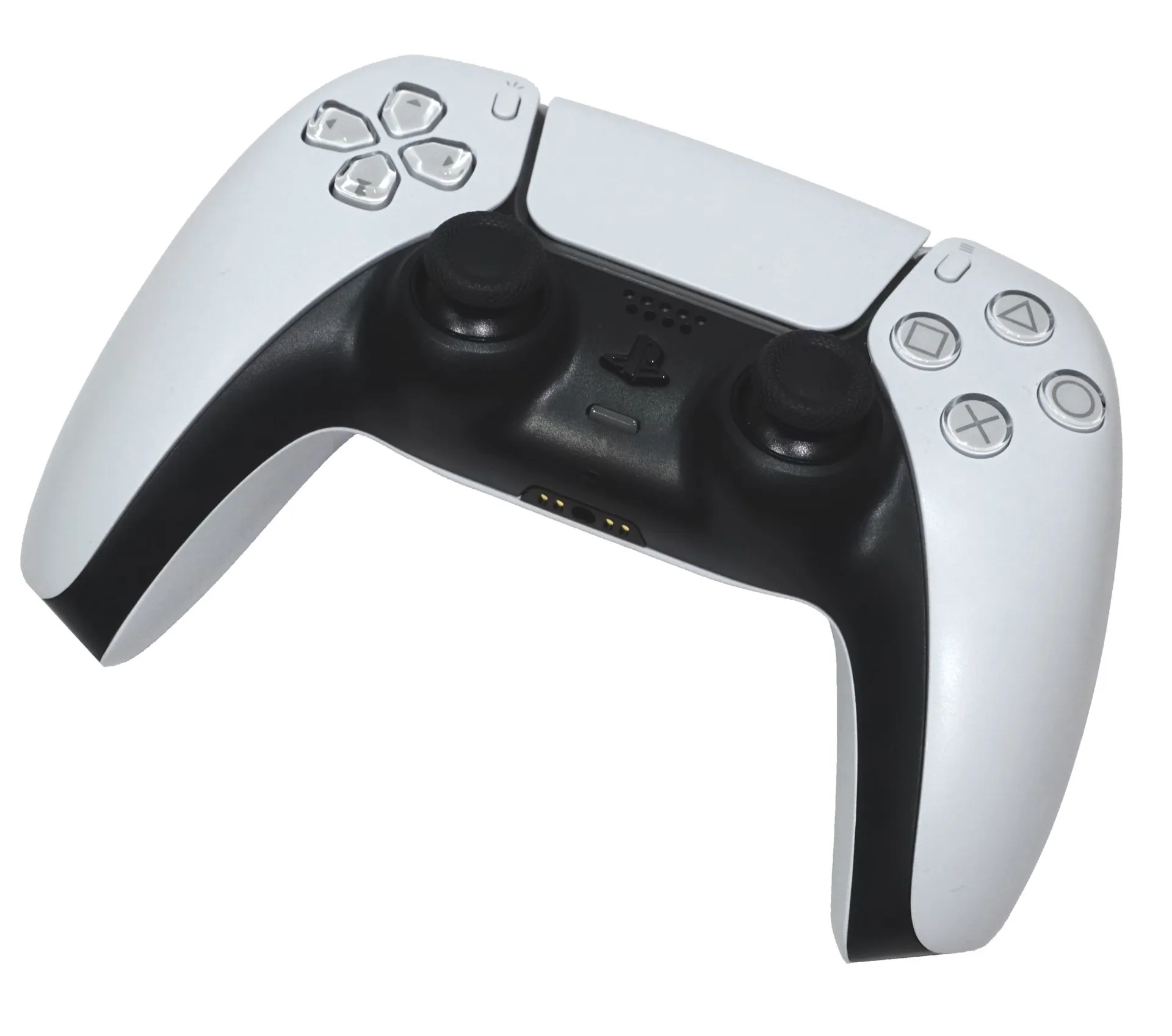
The reset button sits inside a small round hole on the back of the DualSense, right next to the Sony logo, between the two triggers. It’s recessed so you can’t press it by accident, which is why you need a pin. On the DualSense Edge it’s also on the back of the controller.
Reconnecting after the reset
Use the cable that came with your console or controller, or any USB-C cable you know carries data. Plenty of cheap cables only charge, and with one of those the controller lights up but never pairs. Any working USB port on the PS5 is fine. If the front port does nothing, try a rear one, because a loose or worn port can look like a controller fault.
If pressing the PS button does nothing after the reset, leave the controller plugged in to the console for 15 to 30 minutes. A completely flat battery has to recover some charge before the controller responds. If it still shows no light after that, go to the troubleshooting section below.
How to reset a DualSense Edge
The DualSense Edge resets the same way as the standard DualSense: turn off the PS5, unplug the cable, press the button on the back with a pin, then reconnect by USB and press the PS button. Sony’s Edge troubleshooting page also says to update both the console system software and the Edge’s device software before or after a reset.
Edge profiles after a reset
Sony says the reset doesn’t affect profile settings, so your custom profiles, back-button assignments and Fn shortcuts should still be there. To check them, go to Settings > Accessories > DualSense Edge Wireless Controller > Custom Profiles. If a profile looks wrong, edit it there. There’s no need to reset again.
Fixing Edge drift with the stick module
On the Edge, a drifting stick is a parts problem with a quick fix. The DualSense Edge Stick Module is a replaceable unit listed at $19.99 at Target, and a Best Buy Q&A answer says it carries a 1-year manufacturer warranty. Swapping it takes a few minutes using the release latch and lever described in the Edge’s manual. You don’t need any tools or soldering.
Reset first if the drift appeared suddenly after an update or after pairing with a PC. If the drift builds up slowly, or a reset only helps for a day, swap the module.
Reset and re-pair a PS5 controller on PC, Mac or phone
You can’t press a reset “on” a PC. The pinhole reset is done on the controller itself, then you re-pair it. On a computer or phone, pairing is done in Bluetooth pairing mode: with the controller off, hold the Create button and then the PS button until the light bar blinks.
| Device | Reset method | Re-pair method | Firmware update path |
|---|---|---|---|
| PS5, PS5 Slim, PS5 Pro | Pinhole, console off | USB-C cable + PS button | Settings > Accessories > Controllers on the console |
| Windows PC | Pinhole, then remove the old Bluetooth entry | Create + PS, then add in Bluetooth settings | Sony’s Firmware Updater for DualSense, USB only |
| Mac | Pinhole, then Forget This Device | Create + PS, then connect in Bluetooth settings | None. Needs a PS5 or a Windows PC |
| iPhone or Android | Pinhole, then forget the device | Create + PS, then pair in Bluetooth settings | None. Needs a PS5 or a Windows PC |
Resetting your PS5 controller on PC
- Unplug any USB cable from the controller. Sony’s Bluetooth page says to do this first, because a cable can stop the controller from entering pairing mode.
- In Windows 11, go to Settings > Bluetooth & devices, find “Wireless Controller”, and choose Remove device. On Windows 10, the same entry is under Settings > Devices > Bluetooth & other devices.
- Press the pinhole button for at least 5 seconds.
- With the player indicator off, hold Create, then hold the PS button until the light bar blinks.
- In Windows, select Add device > Bluetooth and choose “Wireless Controller.”
Expected result: the light bar blinks, then the player indicator lights up. For a wired setup and the Steam settings that go with it, see the full process to connect a PS5 controller to a PC.
Player tip
Before pairing over Bluetooth, unplug the USB cable and remove the old “Wireless Controller” entry from Windows or macOS. A leftover entry is the most common reason a re-pair fails.
Updating DualSense firmware without a PS5
Sony’s Firmware Updater for DualSense wireless controller has been available since April 2022 and is still the official route on PC. According to TechRadar’s coverage of its release, it runs on Windows 10 (64-bit) and Windows 11, needs about 10 MB of storage, updates over a USB cable only and handles one controller at a time. Install it, plug in the controller, and follow the prompts. Don’t unplug the cable until it confirms the update is finished.
Did you know?
You can update a DualSense’s firmware without owning a PS5. Sony’s free Windows updater works only over a USB cable and only on one controller at a time, as TechRadar reported when Sony launched it.
Mac and mobile limitations
On macOS, remove the old pairing under System Settings > Bluetooth (select the info icon next to the controller, then Forget This Device), then pair again with Create + PS. Sony’s Bluetooth page says haptic feedback, the built-in mic and the speaker don’t work when the DualSense is connected to a Mac or a mobile device. That applies to PS Remote Play on a phone too. There’s no Mac version of the firmware updater, so Mac owners need a PS5 or a Windows PC to update.
Multi-device pairing slots after a reset
Since the PS5 system update that began rolling out on September 17, 2025, a DualSense or DualSense Edge can remember up to four devices, and each one gets its own slot. To switch, hold the PS button together with that slot’s action button for about 3 seconds. The number of player-indicator lights tells you which slot is active.
| Slot | Button combo (hold with PS about 3 s) | Player lights | Typical device |
|---|---|---|---|
| 1 | Triangle | 1 | PS5 |
| 2 | Circle | 2 | Windows PC |
| 3 | Cross | 3 | Phone for Remote Play |
| 4 | Square | 4 | Tablet, Mac or second PC |
This is how you get the controller back to your PS5 after pairing it to a PC. Hold PS plus the PS5’s slot button, and the controller reconnects to the console without any reset.
If one device stops connecting after a reset, rebuild only that slot. Switch to the slot with PS plus its action button, put the controller into pairing mode with Create + PS, and pair the device again. On the PS5, plugging in by USB and pressing the PS button re-registers the console. Leave the other slots alone if they still work.
Does resetting fix PS5 stick drift?
Only when the drift is caused by software. Asurion’s drift guide says a reset can clear software or connection-related drift, but if a part inside the stick is worn or damaged, no reset will fix it. If you reset your controller and the stick still drifts, it’s almost certainly a hardware fault.
How to tell if your drift is software or hardware
Run this 60-second test:
- Hard reset the controller and update its firmware.
- Put it flat on a table, hands off.
- Open a game with a free camera, or on PC open “Set up USB game controllers” in Windows or the controller test in Steam Input.
- Watch for 60 seconds.
If nothing moves, the reset fixed it, so it was software. If the camera or crosshair creeps the same way every time, the stick is physically worn. The same drift on a PS5 and on a PC confirms it, because the two run completely different software.
Can you recalibrate a PS5 controller?
The PS5 has no stick calibration menu, so “recalibrating” isn’t something you can do on the console. What helps instead:
- In-game deadzone settings. Many shooters and sports games let you raise the stick deadzone. A small increase hides minor drift at the cost of a little precision.
- Steam Input on PC. It lets you set deadzones per game and shows live stick input.
- The Windows game-controller test. It’s a quick check to show whether the stick returns to center.
On the “did fix #3 actually work for anyone or is it placebo” question that comes up in forums: a higher deadzone really does hide drift, but the worn part is still worn. Expect the drift to grow until the deadzone has to be so high the game feels sluggish.
Cleaning without making it worse
Is compressed air safe, or will it make drift worse? Short, gentle bursts around the base of the stick, with the can held upright, are a common first step. Tilting the can can spray liquid propellant into the controller, so keep it upright. Don’t push the stick hard into its gate, and never drip liquid into it. If cleaning hasn’t helped after one careful attempt, stop and go to repair options rather than opening the shell.
Reset didn’t work? Troubleshooting by symptom
If the hard reset didn’t fix the problem, match the symptom below. Work from the cheapest fix to the most expensive: soft reset, then a different cable or port, then a firmware update, then the hard reset, then cleaning, then a part or repair.
| Symptom | Try first | Then | If it still fails |
|---|---|---|---|
| Won’t pair | Data-capable USB-C cable, different port | Hard reset, then USB + PS button | PlayStation Repairs |
| Works only plugged in | Check the PS5’s “Turn Off Bluetooth” setting | Remove the device on other hosts, re-pair | Repair: possible wireless fault |
| Keeps disconnecting | Move closer, remove obstructions | Update controller firmware | Hard reset, then repair |
| Buttons dead, sticks fine | Soft reset | Hard reset, test in another game | Repair: likely a hardware fault |
| No vibration or haptics | Check vibration settings under Accessories > Controllers | Update firmware | Repair: actuator or trigger motor |
| Won’t charge | Different cable and port, console fully on | Turn on Supply Power to USB Ports in Rest Mode settings | Battery or port repair |
| Light bar off entirely | Charge 30 minutes on the console | Hard reset while charging | PlayStation Repairs |
PS5 controller not connecting
If your controller only works plugged in and won’t connect wirelessly after a reset, check the console first. SlashGear reported that the September 2026 update (26.06-14.00.00) added a “Turn Off Bluetooth” option in some regions, meant for esports venues with many controllers nearby. With it on, wireless controllers can’t connect, the PS5 can’t enter Rest Mode and HDMI Device Link doesn’t work. Turn it back off and pair again by USB.
If the controller was last used with a PC or phone, it may simply be on a different multi-device slot. Hold PS with the PS5’s slot button for about 3 seconds.
Heads up
With “Turn Off Bluetooth” on, your PS5 will not go into Rest Mode, so overnight downloads and controller charging in Rest Mode won’t happen.
PS5 controller buttons not working
If some buttons don’t respond but the sticks work, do a soft reset, then test the buttons in a second game. A button that fails everywhere after a hard reset is a hardware fault, usually worn contacts or debris under the button. Sony’s troubleshooting page sends you to PlayStation Repairs from this point.
Hard reset not working
If the hard reset isn’t working and the light bar won’t even turn on, the battery is probably too flat. Charge the controller on the fully powered-on console for at least 30 minutes, using a different cable if possible. Then press the pinhole button again for a full 5 seconds or more with the console off. A reset with no visible result, followed by a working USB + PS button reconnect, counts as a success. If the light bar never appears on any cable or port, the controller needs a repair.
Update your PS5 and controller firmware
Sony’s troubleshooting pages say to keep both the console and the controller up to date. As of November 14, 2026, the latest PS5 system software is 26.07-14.22.00. PlayStation LifeStyle and Push Square reported it rolling out around November 1 to 2, 2026, with patch notes listing only security fixes. It followed 26.06-14.10.00 from October 2, 2026, which Insider Gaming logged as a security and stability release.
- Console: Settings > System > System Software > System Software Update and Settings > Update System Software.
- Controller on PS5: Plug in the controller. The PS5 usually prompts you when a controller update is available. You can also check under Settings > Accessories > Controllers > Wireless Controller Device Software.
- Controller on PC: Use Sony’s Firmware Updater for DualSense on Windows 10 (64-bit) or Windows 11.
Keep the cable connected for the whole controller update. Pulling it partway through is one of the few ways to leave a controller unresponsive.
Repair, warranty and replacement options
When resets, updates and cleaning have all failed, the fault is in the hardware. PlayStation Repairs, run by Sony Interactive Entertainment, has an online diagnostic that checks your symptoms and warranty status and offers a repair or replacement. Physical drift, a broken adaptive-trigger motor and a battery that no longer holds charge are all problems no reset can fix.
Will opening your controller void the warranty? Opening the shell yourself can void it, and parts like ribbon cables tear easily. If the controller is still under warranty, use PlayStation Repairs before you pick up a screwdriver. On a DualSense Edge, the $19.99 stick module is designed to be swapped by you, so replacing it is the sanctioned DIY fix.
Before you get a repair, spend two minutes on the 60-second drift test or the symptom table. If the fault shows up on two devices after a fresh firmware update, you know it’s hardware, and you can go straight to PlayStation Repairs with a clear description of the problem.
FAQ
Does the PS5 controller have a reset button?
Yes. Every DualSense and DualSense Edge has a recessed reset button inside a small hole on the back. You press it with a pin.
Where is the reset button on a PS5 controller?
It’s in the small hole next to the Sony logo on the back of the controller, between the triggers.
How do I factory reset my PS5 controller?
The pinhole hard reset is as close to a factory reset as the DualSense gets. Turn off the PS5, unplug the cable, hold the button for at least 5 seconds, then reconnect by USB and press the PS button.
How long do you hold the reset button on a PS5 controller?
At least 5 seconds, per Sony. Holding it longer is harmless.
Does resetting a PS5 controller fix stick drift?
Only if the drift is caused by software. If the stick still drifts after a reset and a firmware update, the part is worn and needs a repair or, on the Edge, a new stick module.
How do you recalibrate a PS5 controller?
The PS5 has no calibration menu. Raise the deadzone in game settings, or use Steam Input on a PC to adjust and test the sticks.
Does resetting a PS5 controller delete pairing or settings?
Sony says no: pairing and profile settings are kept. Some third-party guides say pairing is cleared. Reconnecting by USB with the PS button covers both cases. Saved game data on the console is never affected.
How do I reset my PS5 controller without a PS5 or on PC?
Press the pinhole button for 5 seconds, remove the old “Wireless Controller” entry in Windows Bluetooth settings, then pair again with Create + PS. Use Sony’s Windows Firmware Updater to update it over USB.
How do I reset a PS5 controller’s Bluetooth?
Remove the controller from the device’s Bluetooth list, unplug any cable, then hold Create and the PS button until the light bar blinks, and pair again.
Why is my PS5 controller not connecting after a reset?
The usual causes are a charge-only cable, a flat battery, the controller sitting on a different multi-device slot, or the PS5’s “Turn Off Bluetooth” option being on. Check them in that order.
About this piece
- Fact-checked by Harriet Vance against the sources listed below before publication.
- Published
Sources (8)
- How to troubleshoot DualSense wireless controller issues - PlayStation Support (playstation.com)
- Troubleshoot DualSense Edge wireless controller - PlayStation Support (playstation.com)
- PlayStation Support - Accessories (playstation.com)
- Pair DualSense controller via Bluetooth - PlayStation Support (playstation.com)
- PS5 system update beta previews DualSense pairing across multiple devices - PlayStation Blog (blog.playstation.com)
- How to pair DualSense with multiple devices - Tech2Geek (tech2geek.net)
- Your PS5 DualSense controller can finally be updated on PC - TechRadar (techradar.com)
- PS5 System Update Rolled Out to Ring in November 2026 - PlayStation LifeStyle (playstationlifestyle.net)